How to Change the Dress in a Photo with AI
By the Twirldress Team
How to change the dress in a photo with an AI dress changer: keep the face, pose and background, swap the outfit, and export a natural-looking edit in about twenty seconds.
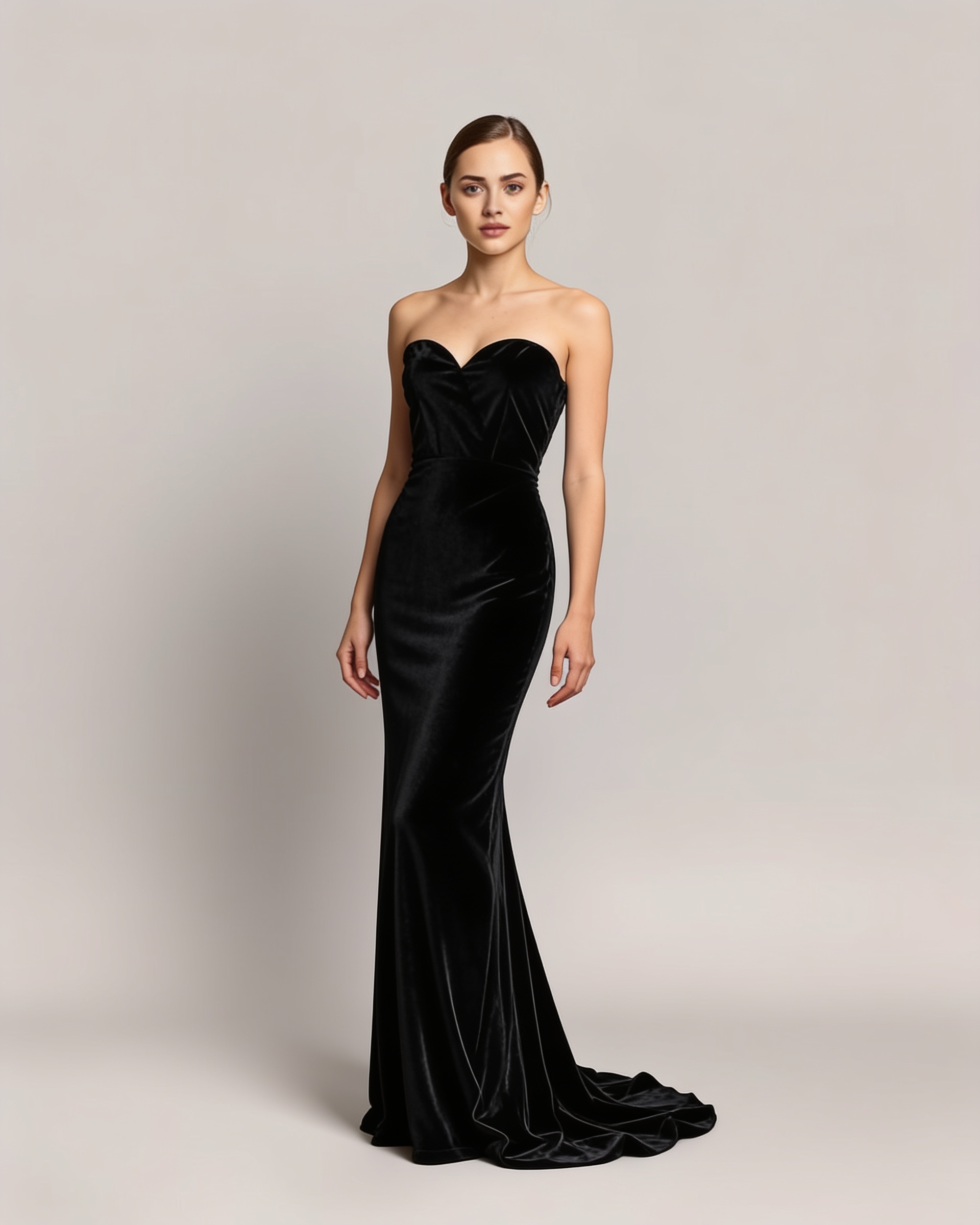
The photo is perfect — the light, the pose, the smile. The dress isn't. Maybe it's the wrong color for the occasion, maybe you want to see the same moment in a gown instead of jeans, maybe you're a photographer delivering look variants without reshooting the client. An AI dress changer swaps the outfit in a photo while keeping everything else — face, pose, background, light — and it takes about twenty seconds. Here's how to do it so the edit looks natural, not pasted.
By the Twirldress Team — we build Twirldress's free AI dress try-on so you can see a dress on you before you buy or commit. Every guide is written from real try-ons, not guesses.
Why AI dress changing works when manual editing doesn't
Draping is physics, and the AI does the math
Cutting a dress out of one photo and pasting it onto another never looks right, because fabric folds follow the body and the light underneath it. A generative model repaints the garment region with folds, shadows and highlights that follow your actual pose and the photo's lighting — which is why a good result reads as a real photograph.
Same photo in, same photo out — just redressed
Unlike generating a model from scratch, a changer keeps your identity: same face, same hair, same background, same frame. That's what makes it usable for real decisions — comparing how the same look reads in three different dresses, with nothing else moving.
One shoot, many deliveries
For photographers and content creators, this is the quiet superpower: a single session becomes a dozen looks. Change the dress, keep the client's best expression of the day — the one that would be a shame to lose just because the outfit changed plans.
How to change the dress in a photo, step by step
Step 1: Choose a photo where the outfit is clearly visible
The AI needs to see what it's replacing. A front-facing, full-body or three-quarter shot with the current outfit unobstructed gives the cleanest swap. Hands tucked into pockets, bags crossing the body, or heavy overlap with other people all give the model less room to work.
Step 2: Pick the replacement dress
You can pick from the tool's dress library — evening gowns, sundresses, qipao, bridal looks — or upload a photo of a specific dress: a product shot from a shop, a screenshot of a gown you saw online. The closer the replacement photo is to a clean, well-lit view of the garment, the better the transfer.
Step 3: Generate and inspect the edges
In about twenty seconds you get the redressed photo. Look first at the boundaries — neckline, sleeves, hem — where edits usually give themselves away. A natural result keeps the dress inside your body's outline and lets the hem cast a plausible shadow.
Step 4: Check fabric behavior, not just color
Sequins should sparkle where the light hits; velvet should deepen in shadow. If the fabric texture looks flat or the folds ignore your pose, regenerate — a second pass with the same inputs often lands better, and comparing passes costs nothing.
Step 5: Export at the size you need
Choose the output ratio before you generate: portrait 3:4 for profile and print, square for feed posts, wider ratios for banners. Exporting once at the right size avoids recompressing the image and losing crispness.
The source photo makes the edit: a quick checklist
| Source photo | Effect on the result |
|---|---|
| Outfit fully visible | The AI replaces cleanly; no ghosted sleeves or hems from the old garment. |
| Even lighting on the body | New fabric inherits believable highlights instead of random bright patches. |
| Plain background | The edit stays confined to the outfit; busy scenes risk bleeding at the edges. |
| Sharp and uncropped | Low-resolution or tightly cropped photos force the AI to invent detail — and it invents wrong. |
| Standing or gentle pose | Extreme poses bend fabric in ways the model struggles to predict. |
Quick wins before you generate
- Start with your best existing photo — the one you'd post anyway — rather than shooting something new.
- Try the same photo with two or three replacement dresses; the comparison is the whole point.
- Use the free front view to shortlist, then unlock side views with credits if you need to check a train or back detail.
- Keep the original untouched: always download the edit as a new file so you can A/B them honestly.
- For portrait exports, 3:4 is the safest ratio across profiles, prints and frame posts.
A real example, start to finish
- 1
Open the fitting room
Twirldress's tool sits right on the homepage; the first try-on is free with a quick Google sign-in.
- 2
Upload the photo
Choose the photo whose dress you want changed — a portrait where the outfit is fully visible works best.
- 3
Choose the new dress
Pick from the library or upload a photo of the specific dress you want in the picture.
- 4
Set the output size
3:4 by default; open the size menu for nine other presets from square to widescreen.
- 5
Generate and review
About twenty seconds later the dress is changed. Inspect neckline, hem and folds before you commit.
- 6
Download or iterate
Save the result with one tap, or swap in another dress and compare — the original photo stays untouched.
Common mistakes to avoid
- Using a photo where other people overlap the outfit — crop to just the person being redressed.
- Expecting a baggy hoodie to vanish cleanly; thick, loose layers blur the silhouette the AI inherits.
- Uploading a screenshot of a screenshot; every compression generation costs the result sharpness.
- Judging the edit at thumbnail size. Zoom to 100% on the neckline and hem before deciding it's good.
- Changing everything at once. Change only the dress per pass — mixing in background or hair edits muddies which change worked.
How do I change the dress in a photo with AI?
Upload the photo to an AI dress changer like Twirldress, pick a replacement dress from the library or upload one, and generate. The AI keeps the face, pose and background and repaints the outfit in about twenty seconds.
Will my face and background stay the same?
Yes — that's the core of the feature. Only the clothing region is regenerated; identity, pose, hair and scene are preserved so the result reads as the same photo, redressed.
Is my photo stored or published?
No. Photos are processed to produce your result and aren't published anywhere. Extra-angle generations are produced on the fly and not stored either.
Can I use any dress photo as the replacement?
Any clear photo of the garment works: a shop product shot, a designer look from social media, or a dress from Twirldress's built-in library of over thirty styles.
Is changing a dress in a photo free?
Your first try-on on Twirldress is free after a quick sign-in. After that, packs of credits cover further generations and extra viewing angles.
The bottom line
Learning how to change the dress in a photo comes down to respecting the input: a clear outfit, even light, a simple background. Feed the AI a decent photo and it returns a believable redress in seconds — same you, same moment, whatever dress the occasion calls for.
Ready to see it on you?
Upload a photo and slip into any dress from our library — sign in and your first try-on is free.